There are quite a few individuals, and even businesses, that wish they had the ability to create a simple website. Websites typically double as an informational resource and a connection to a particular topic or industry. People commonly refer to websites as a person’s or company’s “web presence”, referring to the fact that the subject of the site is known on the World Wide Web. We are here to tell you that creating a “web presence”, or website, doesn’t have to be a time or skill intensive task. Actually, we are going to show you how to create a one-page website that will get the job done in no time.
We are going to use the Wix.com website builder to build our one-page website for a variety of reasons: (1) It’s 100% free to create and publish a website, (2) the free website builder’s drag-and- drop tool makes the design process a breeze and (3) the builder offers users unique features, like Flash components, that can be added to any website. With this being said, let’s get started creating our new website.
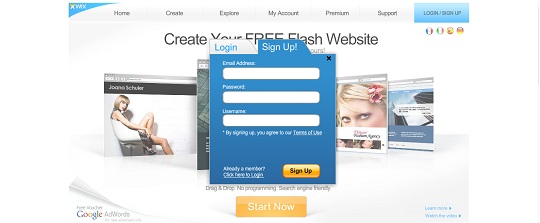
1. Create a new user account at Wix.com. This is a simple task that will only require minimal information from you.
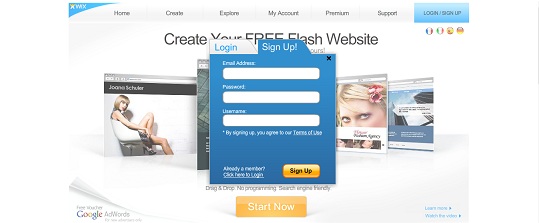
2. Click the “Create” button, which is located on the navigation menu towards the top of the screen.

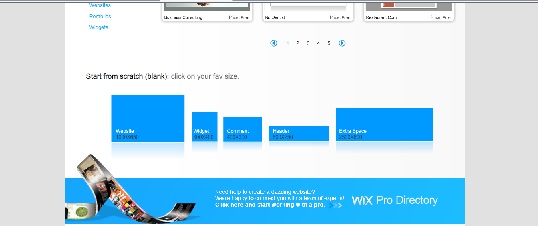
3. You can choose one of thousands of pre-made templates, but because all of the templates are multiple page website, it is probably easiest to start from scratch. To start from scratch, scroll to the bottom of the “Create” page and select the size of your blank website.
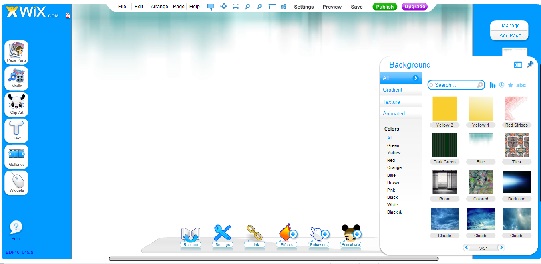
4. The first thing you will need to add to your website is a background. Move your cursor over the “Page Parts” button, which is located at the top of the left navigation menu. You will then see another menu pop up and click on the “Background” button. Browse the background gallery and click on the one you like.
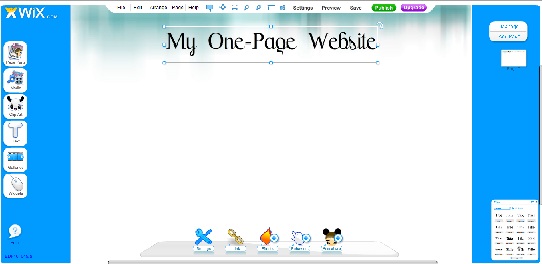
5. Now you need a title. This can be the name of your company or even your name (if you are creating a personal portfolio). Move your cursor over the “Text” button on the main navigation menu and click on “Title”. Choose the format that you like. You will see the text pop up on your page. Select the text, press delete and type your own title. You can move the text box anywhere on the page by clicking and dragging it.
6. From here, you can add any elements you wish to your website. A navigation bar is not needed because it is only a one-page website. To your own photo or photo of your business, move your cursor over the “Media” button on the navigation bar. Click on “Pics”. A box will pop up and will direct you to the pictures you have saved on your computer.

As we mentioned above, there are literally thousands of things that you can add to your new Wix website. Explore the navigation menu to see all the features that can be added. The opportunities are endless. When you are happy with the website you have created, click the “Publish” button at the top of the screen. You website will be instantly published on the internet at the domain that Wix has generated for you.
Viola! You have just created a custom web presence with a simple, one-page website!